The Easy Way to Speed Up Your Phone
In an age when the smartphone has become indispensable, a device that is sluggish can become a never-ending nuisance. It's important to remember, however, that a slow device doesn't necessarily mean that it needs to be replaced. In fact, a slow device can be sped up without too much hassle and more importantly - for free. This guide will show you how to boost the speed of your Android or iOS device using a few simple steps.
Basic Steps for both Devices
Before you get into the phone's nitty gritty, there are a few habits you can adopt to speed up your phone and keep it running smoothly for a long time.
- Backup your photos and videos and delete them from the device – When you save a photo or video to your device, you take up space in its memory. If the device' memory is overloaded, it slows down the phone. Instead, backup your photos and videos on your computer, or on the cloud (using Google Photos or Apple's backup service). To back data into your computer, use a USB cable to connect both devices. This also saves your precious memories in case your phone breaks/is lost/stolen.
- Turn the phone off and on again once a week – If you're not in the habit of doing this yet, start doing it. A smartphone is a computer, and sometimes these devices need some rest. A quick restart only takes a couple of moments, but the increase in speed is worth it.
- Keep your phone cool – Heat has a strong negative effect on electronics. Your phone should be kept in a cool and shaded environment, and kept out of direct sunlight and excessive heat. Additionally, avoid using your phone when it's charging, as that process generates a lot of heat as well.
1. Make sure your phone's operating system is up-to-date Google, the makers of Android, are constantly updating and upgrading the program to improve speed and stability, as well as fix bugs from older versions. System updates are usually automatic, but just in case, you can manually check for the newest version in this manner:
| |
2. Minimize (or cancel) animations Android devices animate a lot of functions (such as sliding between apps, etc.), but these animations can slow down your device. If you prefer performance to aesthetics – you can cancel the animations entirely.
| |
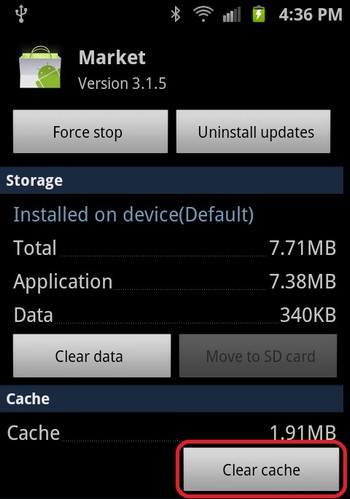
3. Clear useless data from your device The applications on your phone collect a lot of unneeded data that can (and should) be removed. Clearing space on your phone makes it faster.
| |
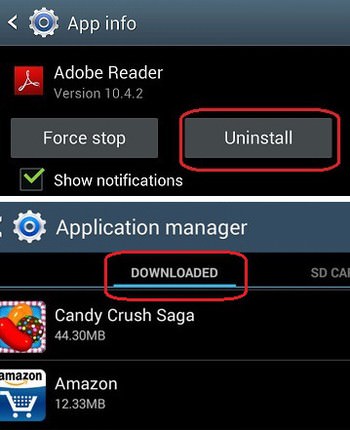
4. Remove apps you don't use You may have had fun downloading that game, or trying out that new app everyone's been talking about, but you find that you don't use it anymore. By removing useless applications, you get to clear up space on your smartphone.
| |
5. Reduce the automatic sync of various apps Your Email, Facebook and other social networks all update live, sending and receiving data non-stop. By reducing the amount of updates your device performs, you'll extend the lifespan of your battery, as well as its speed. However, Note: this option only exists in Android 5 ("Lollipop") or higher.
| |
1. Check the data usage on your phone Many applications that you don't use take much-needed space on your phone, slowing it down. This is how you can check how much space is taken, and by which applications, removing the ones you don't need.
|
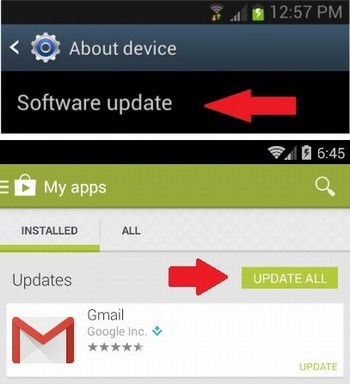 Go to Settings, select More, and then select About Phone.
 Go to Settings, select More, and then enable Developer options.
 Go to Settings, select More, and then select Application Manager.
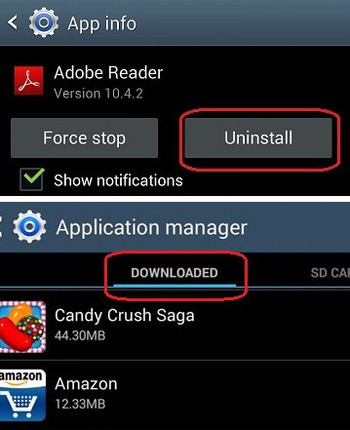 Go toSettings, select More, and then on Application Manager.
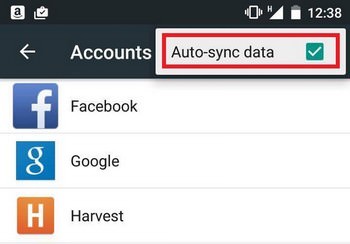 Go to Settings, select Accounts.
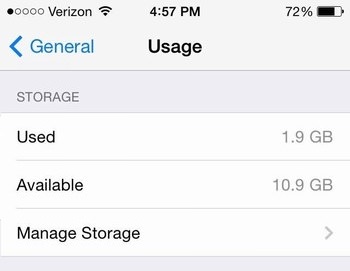 Go to Settings, select General, and select Usage.
2. Clear your browsing history When you browse the web, your iPhone saves a lot of data so it can load them faster in the future. While it may save you a few seconds next time you go to those sites, it will slow down the rest of your phone. It's good to get into the habit of clearing this data every once in a while.
| |
3. Disable automatic application updates Apple's App Store is constantly on, searching for updates for installed apps, and while this assures that you enjoy the newest version available, it also drains your battery and slows down your device. If you don't mind manually updating apps once in a while, you can cancel auto updates easily.
| |
4. Disable automatic connection Whenever your device searches for a wireless network or a Bluetooth connection it slows down all the other processes. These options might make things easier by saving you the need manually connect to network and devices, but the time you save means that your device will be slower when performing other functions.
| |
5. Disable animations and effects If your device is running iOS 7 (or higher), you know it's very sleek, as it uses animations and other effects to make the user experience more smooth. These effects, however, aso slow down the device, so if you prefer performance over beauty – you'll want to disable these options.
| |
6. Stop apps from working in the background Your phone can run several apps at the same time, which allows you to move between them and enjoy multitasking with ease. However, this feature slows down your device considerably.
|
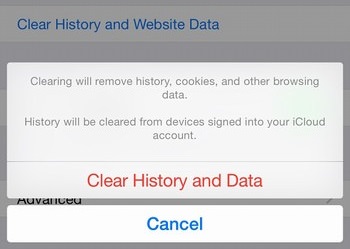 Go to Settings and select Safari.
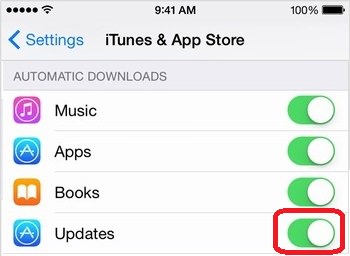 Go to Settings, select App Storeand iTunes.
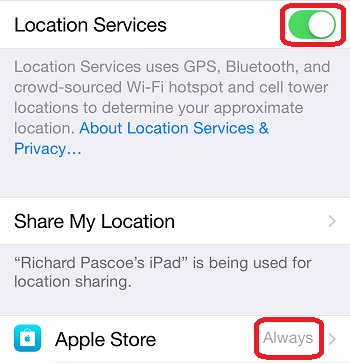 Go to Settings and select Wi-Fi.
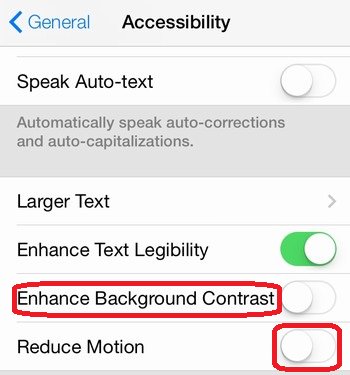 Go to Settings, select General, and then Access.
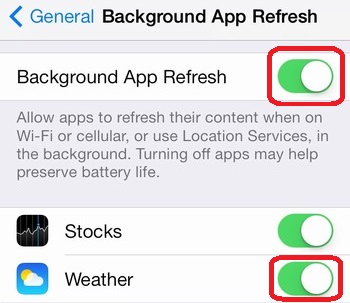 Go to Settings, select General.
Posted by: krishnamurthy_gr@yahoo.co.in
| Reply via web post | • | Reply to sender | • | Reply to group | • | Start a New Topic | • | Messages in this topic (1) |


No comments:
Post a Comment