9 Tips for WhatsApp Beginners
Many people are abandoning plain old text messaging (SMS) and are migrating to WhatsApp for its many benefits for textual communication. WhatsApp sends messages by using small amounts of data through your service provider or via WiFi. If your messaging package is limited, WhatsApp is an excellent replacement, it costs nothing and is free of advertisements. Whether you're already a user, or are wondering why you might need it, these 9 tips will show you how to maximize your texting experience by using WhatsApp.

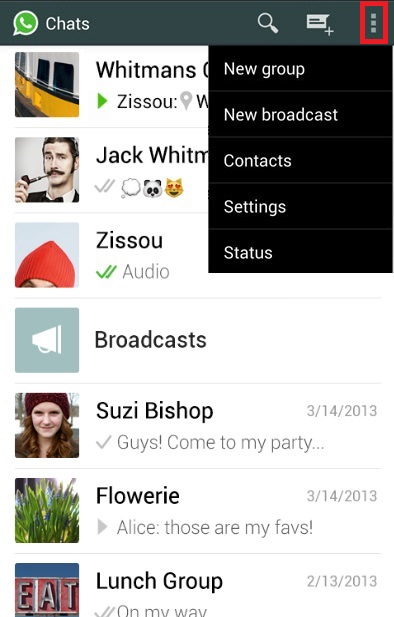
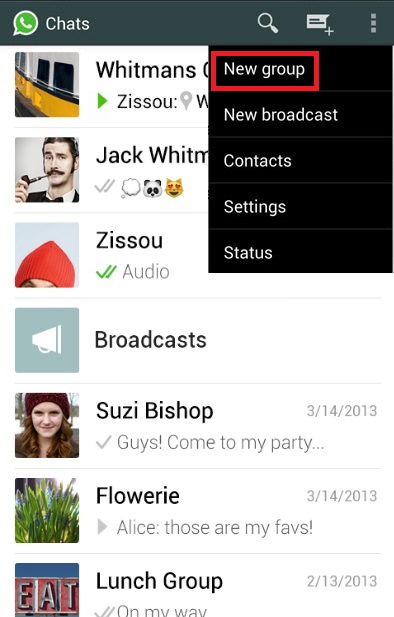
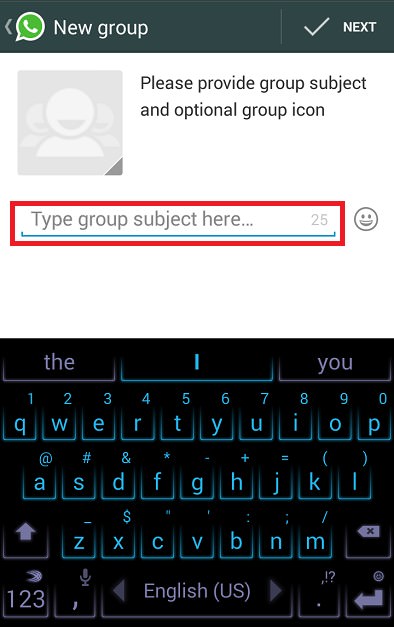
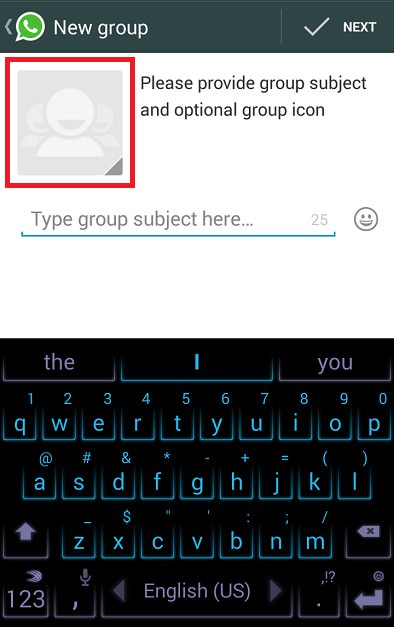
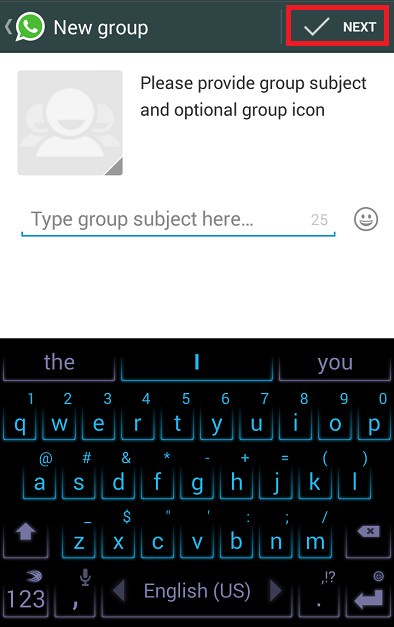
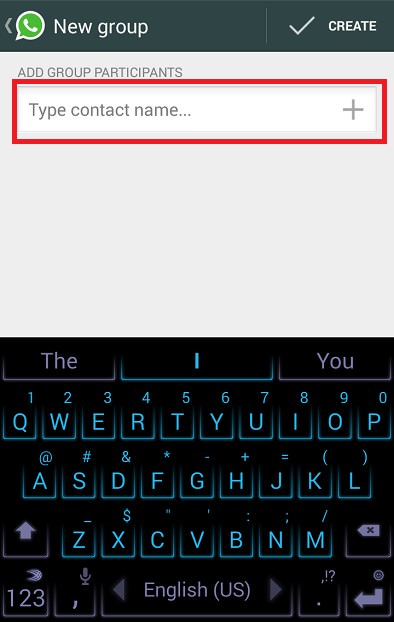
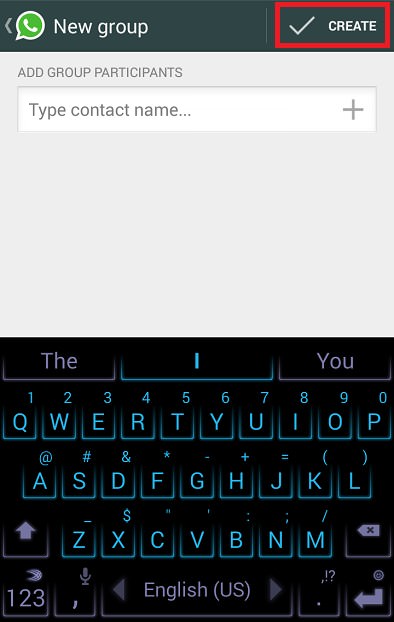
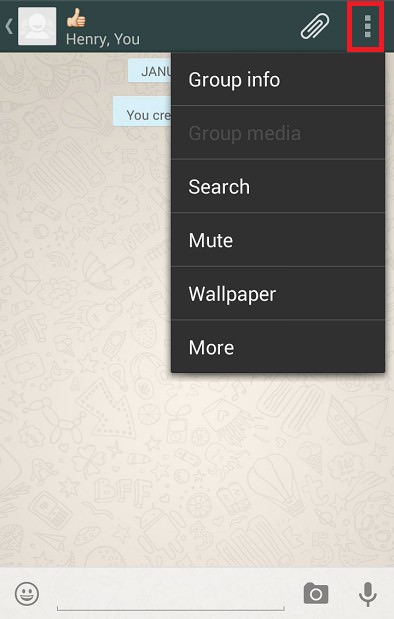
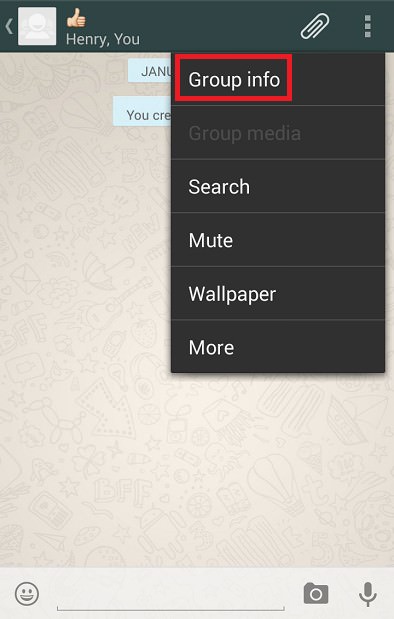
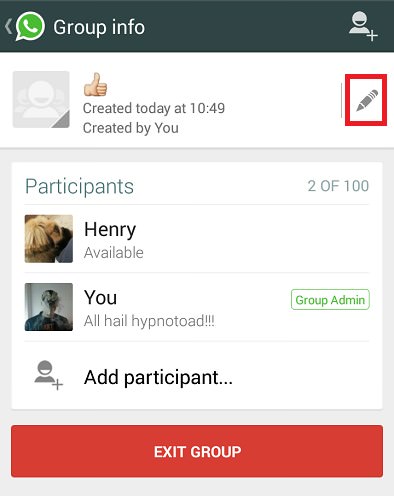
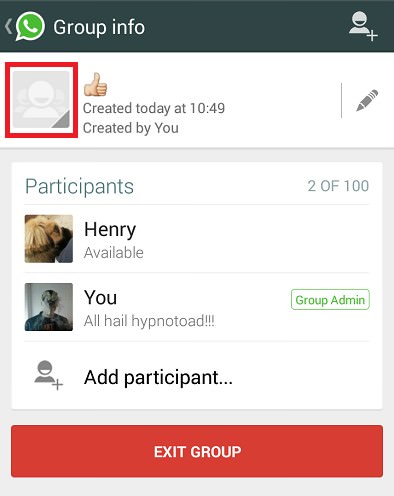
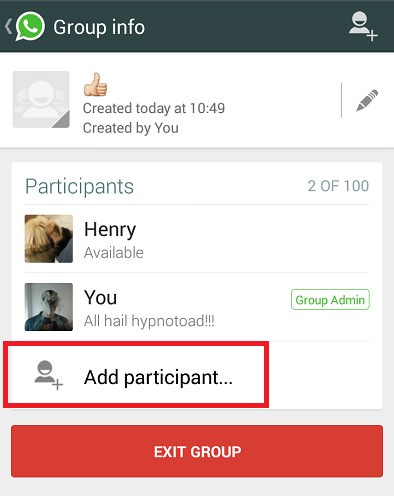
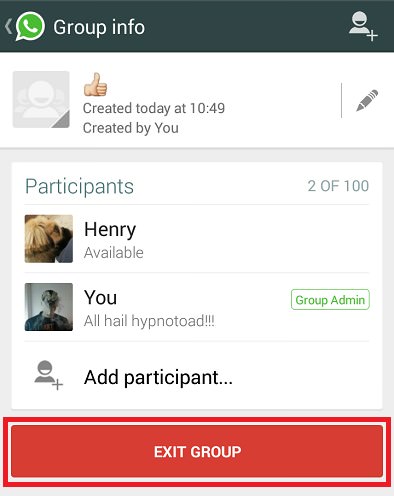
1. Creating a chat group You can set up various groups with different contacts. Set one up for work colleagues, one for friends, one for relatives, etc. When someone sends a message to the group, everyone will see it.
|
 |
|
 |
|
 |
|
 |
|
 |
|
 |
|
 |
|
 |
|
 |
|
 |
|
 |
|
 |
|
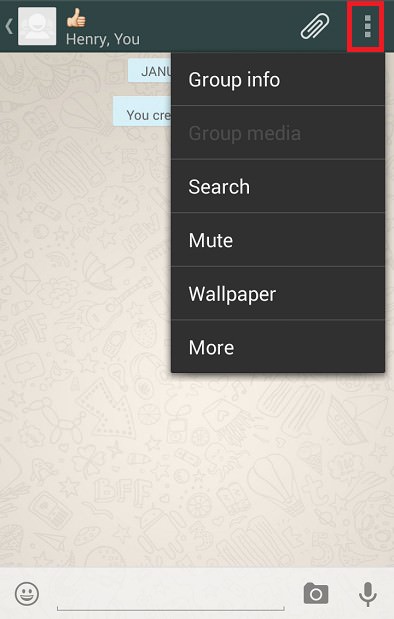
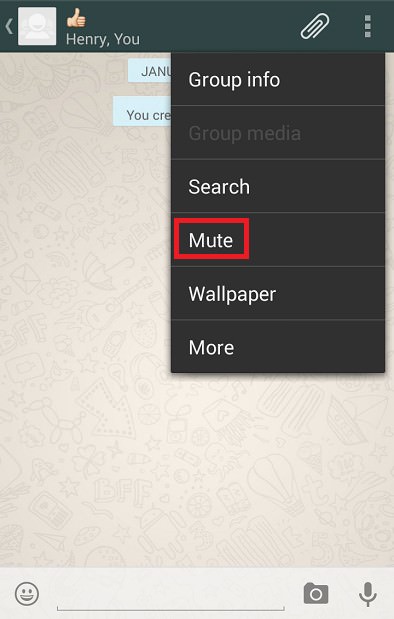
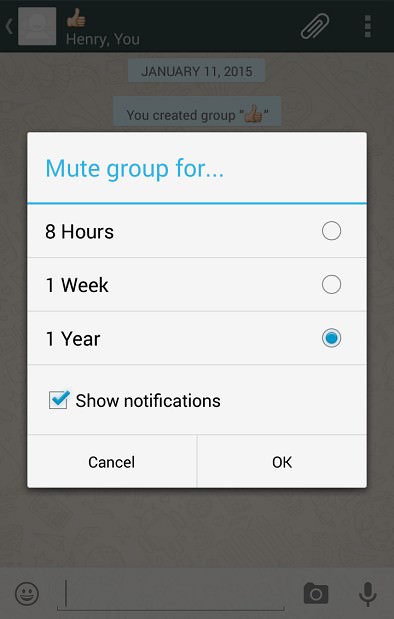
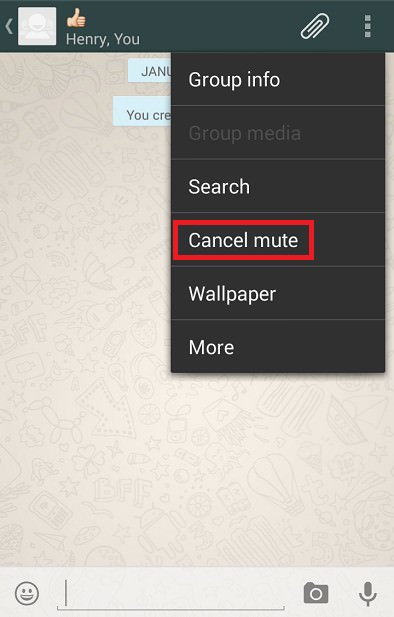
2. Muting a group Is one of your group chats too active? No problem – you can mute a group to stop the notifications on your phone.
|
 |
|
 |
|
 |
|
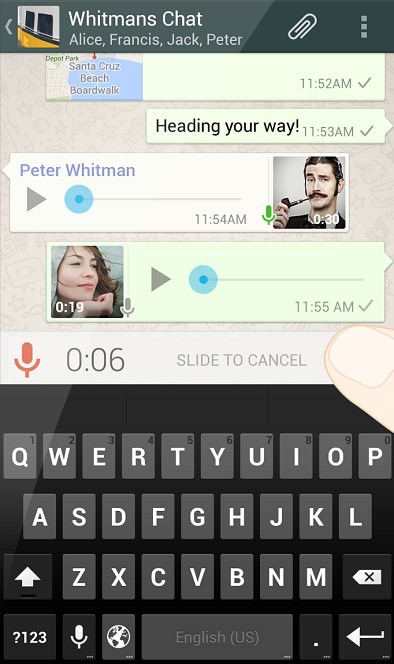
3. Sending a voice message Sometimes you are unable to text for some reason. In such cases, you can use WhatsApp like a "Walkie-Talkie". press and hold the microphone icon next to the text line (only if it's empty), wait for a second and record your message. As soon as you're done, remove your finger from the microphone icon and the message will be automatically sent. If you want to cancel the message you are currently recording, slide your finger to the opposite side of the microphone icon. You can listen to any message you've sent by pressping the "play" icon next to the message. |
 |
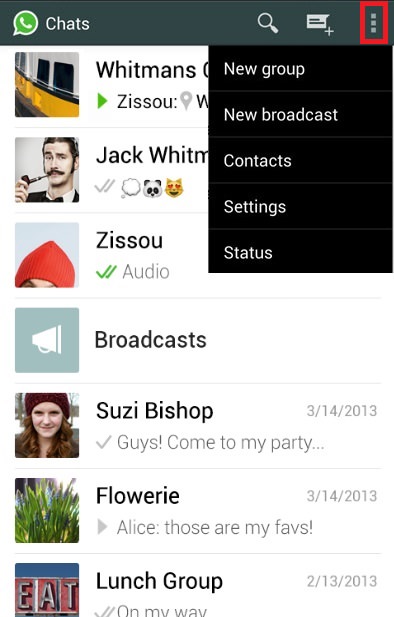
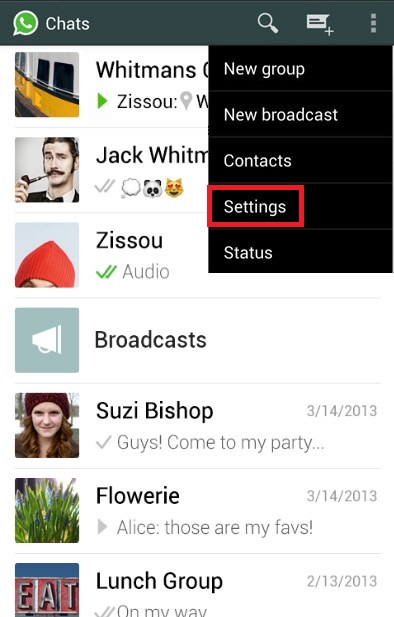
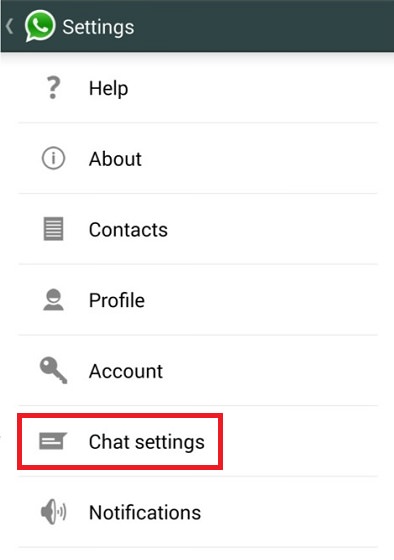
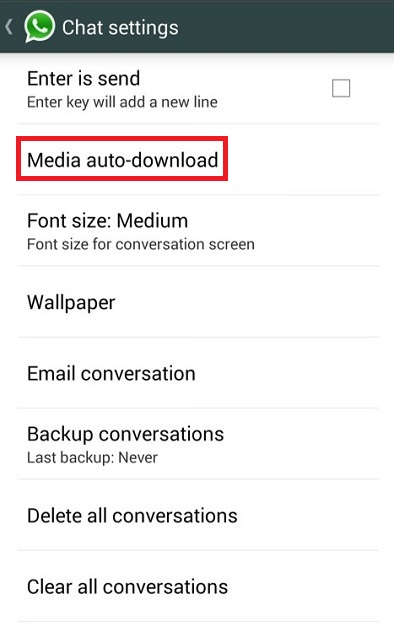
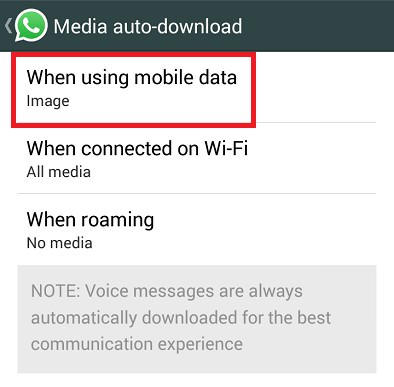
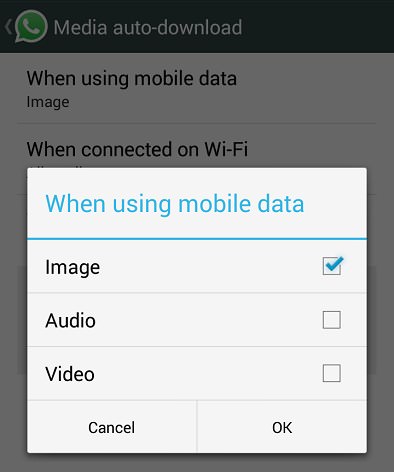
4. Stop the automatic download of pictures and videos By default, WhatsApp will download any incoming picture and video to your device. If you don't want to everything to download into your device, or you have a limited data package, you can cancel the auto-save feature.
|
 |
|
 |
|
 |
|
 |
|
 |
|
 |
5. What are those little signs next to the message?
|
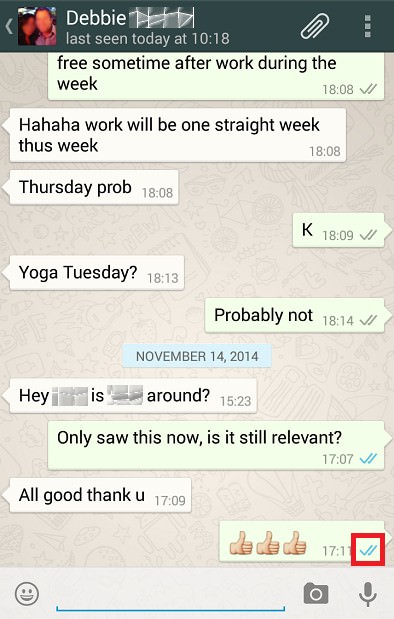
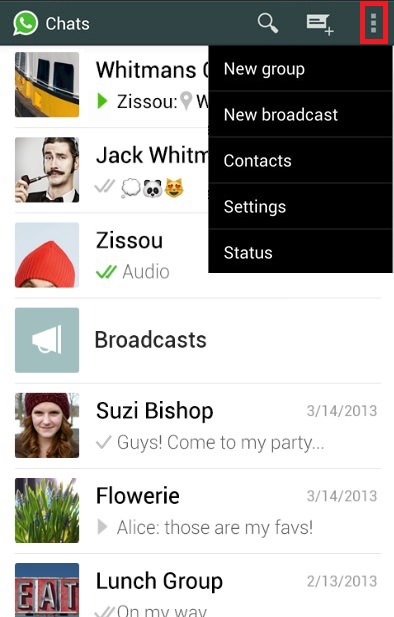
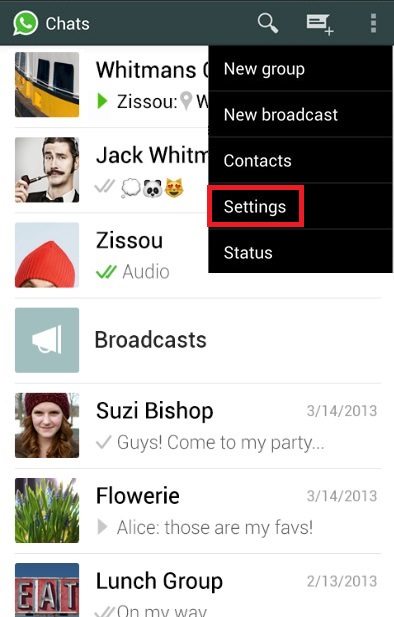
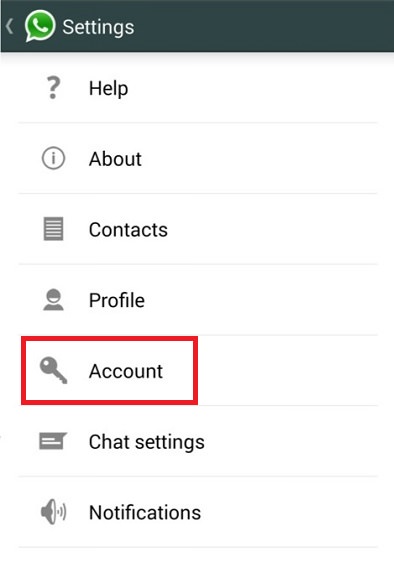
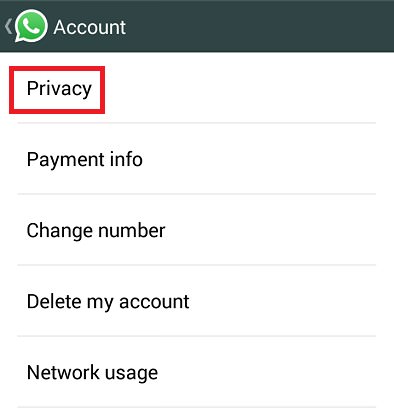
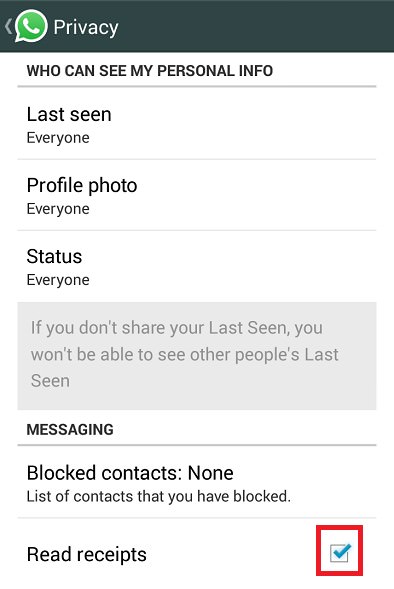
6. Disable the "read" indication from your messages Some WhatsApp users don't want the sender to know they read their message. If you are one of these people, you can cancel the confirmation, preventing others from seeing that you have indeed read the message. This is a double-edged sword, and it means you won't be able to get these confirmations either.
|
 |
|
 |
|
 |
|
 |
|
 |
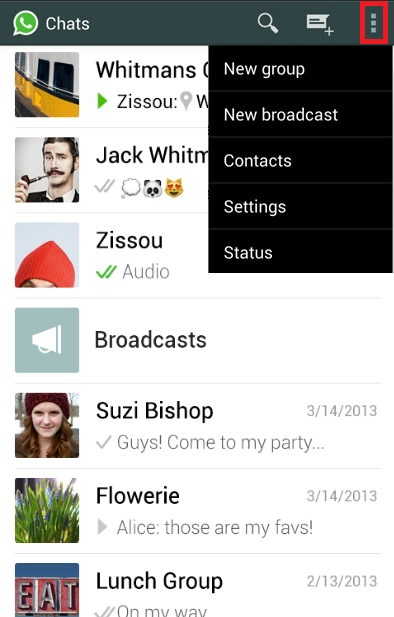
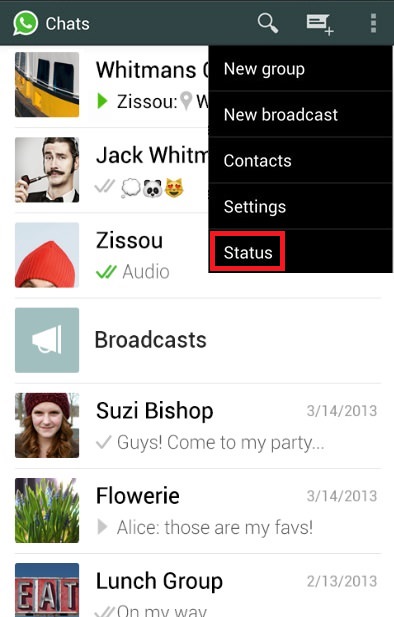
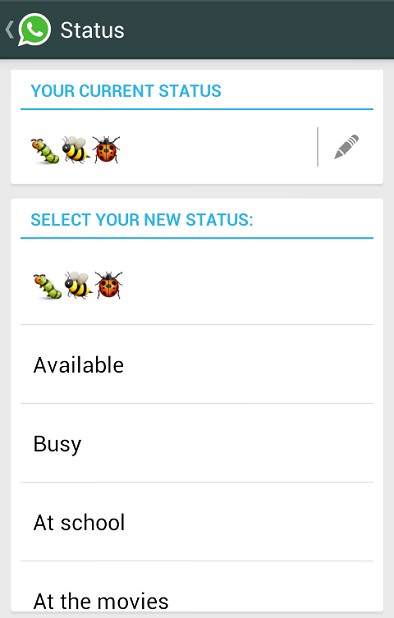
7. Changing your status You can set up a short message under your name, so anyone who sees you, will also see that message. You can use one of the default messages or write your own.
|
 |
|
 |
|
 |
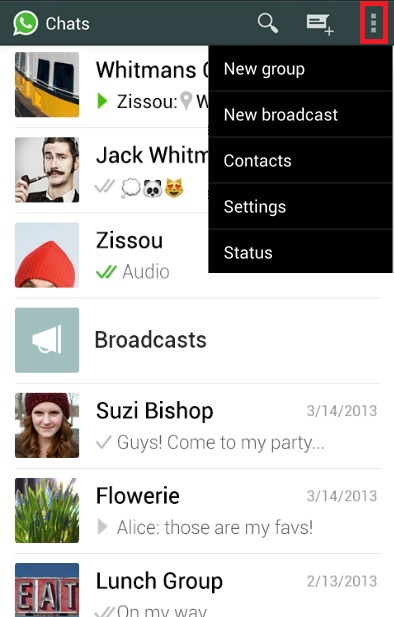
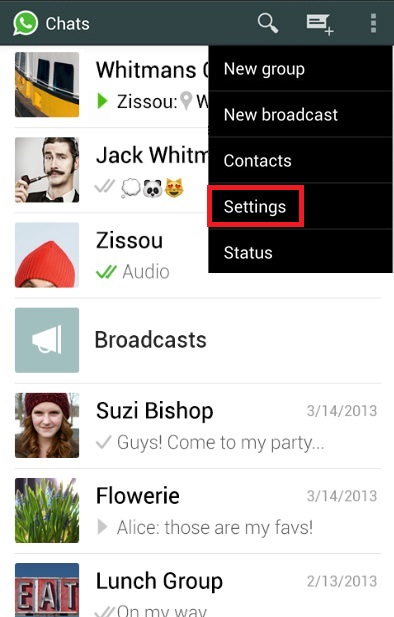
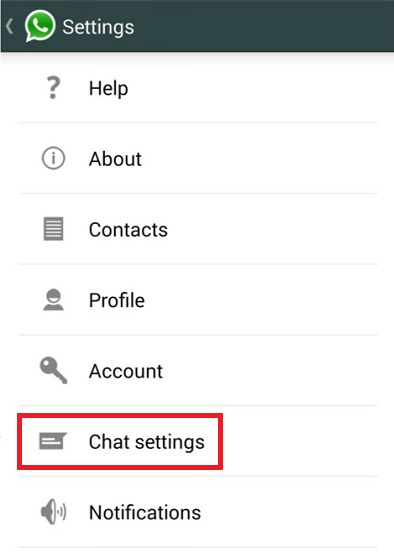
8. Change the chat window wallpaper We all like to personalize our phones, and just like you can change your phone's wallpaper, you can do the same for WhatsApp's chat windows.
|
 |
|
 |
|
 |
|
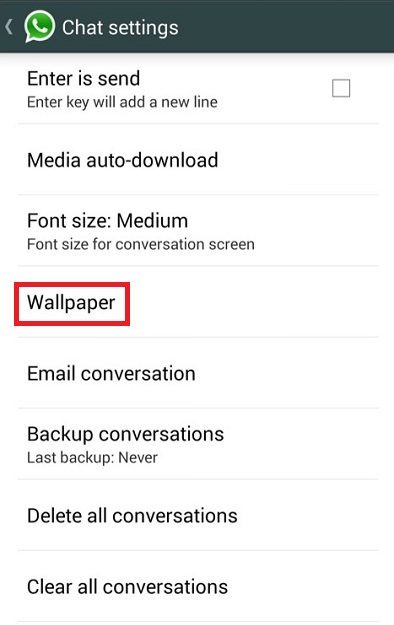 |
Now you can choose a picture from WhatsApp's collection or your phone's photos. |
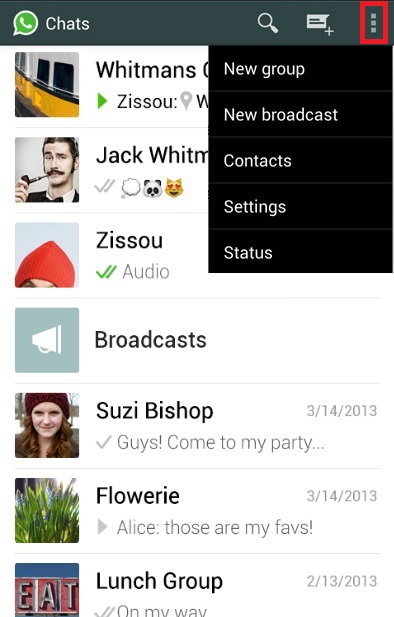
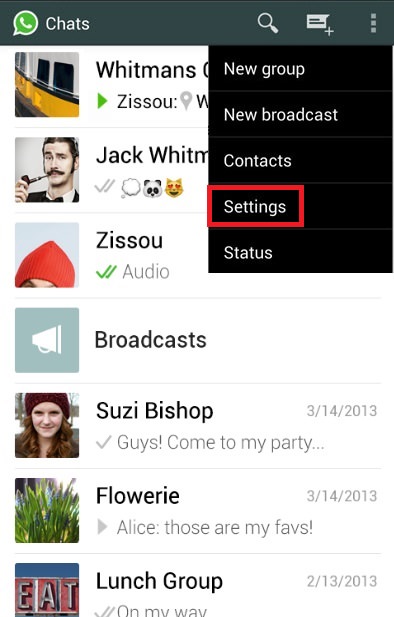
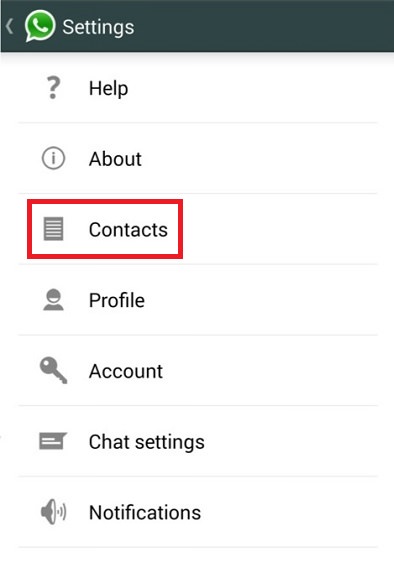
9. Finding a missing contact If you recently added a new contact to your phone, it may not appear on WhatsApp straight away. This is a simple matter to resolve.
|
 |
|
 |
|
 |
|
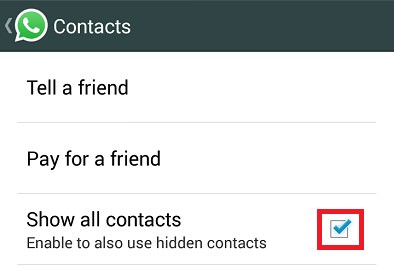 |
You should now be able to see all of your contacts who also have WhatsApp installed. |

Posted by: krishnamurthy_gr@yahoo.co.in
| Reply via web post | • | Reply to sender | • | Reply to group | • | Start a New Topic | • | Messages in this topic (1) |


No comments:
Post a Comment